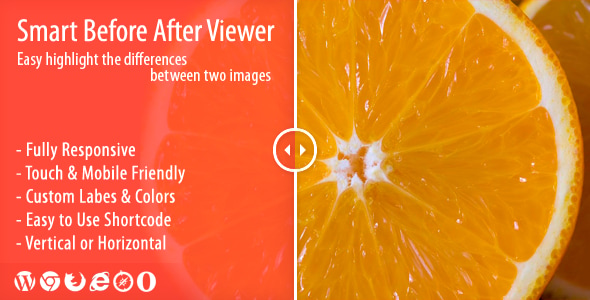
Smart Before After Viewer is a WordPress plugin that places two images in the same frame with a draggable or hover-driven divider, so visitors can slide between a “before” and “after” state. It is built for sites that need to show change visually — retouching work, renovation projects, restoration, product updates — and it ships as a shortcode-driven tool with a template tag for theme files. At $18 with roughly 2,000 sales and a 4.64 rating across 61 reviews, it sits in the budget tier of Smart Before After Viewer Galleries, aimed at freelancers and small agencies who want a working comparison slider without paying for a premium gallery suite.
What the plugin actually does well
The core mechanic is a two-image comparison slider built on the ZURB TwentyTwenty jQuery script, which the vendor credits openly. That foundation matters: TwentyTwenty is a well-worn, lightweight library, and the plugin’s job is to wrap it in WordPress-friendly controls rather than reinvent the interaction. On that count it delivers.
Two interaction modes and two orientations. Each comparison can be set to respond to dragging the handle or to hovering across the image, and the divider can run horizontally or vertically. The hover mode suits hero sections where a click feels like too much commitment; drag mode is the safer default for touch devices because hover has no meaning on a phone.
Unlimited instances per page. There is no cap on how many comparisons can appear on a single post or page. A photographer’s portfolio page can carry a dozen sliders, each with its own settings, without the plugin forcing a single global configuration.
A shortcode generator plus a template tag. Most users will build comparisons through the admin shortcode generator, which assembles the parameters and — since version 1.4 — can save a chosen set of options for reuse. Developers who prefer to hard-code placements can call the sbav_before_after() function directly inside theme template files. That dual path is the plugin’s most practical feature for agencies that hand sites over to clients.
Label and colour control. The “before” and “after” labels accept custom text and colour, and label position is configurable. Overlay colour and opacity on hover are also adjustable, which lets the slider sit inside an existing brand palette instead of imposing its own.
Small touches that show care. A wiggle effect can be enabled to hint that the image is interactive — useful when visitors might not realise the frame is draggable. Support for AJAX-loaded content was added early on, so sliders inside tabs or lazy-loaded sections still initialise. Image alignment (left, centre, right) is a per-instance setting rather than a CSS afterthought.
Where it fits, and where it does not
The clearest fit is a portfolio or service site where proof of change is the sales argument. Retouchers, photo restoration services, cosmetic clinics, detailing studios, landscapers and renovation contractors all sell a transformation, and a comparison slider communicates that faster than two side-by-side photos. Wedding and event photographers use the same mechanic to show grading differences. Agencies building these sites for clients get a cheap, predictable component that will not bloat a page builder.
It also suits documentation and support content — software changelogs showing interface updates, or a design team demonstrating a redesign — because the shortcode can be dropped into any post type and the template tag allows placement outside the content area.
The wrong choice is a site that needs a full gallery system. This plugin compares exactly two images per instance. It has no lightbox, no thumbnail grid, no bulk upload workflow and no masonry layout. A photographer wanting to display forty wedding photos needs a gallery plugin; this handles the one dramatic before-and-after shot that heads the page. Likewise, anyone building with the block editor should note the vendor lists the plugin as not Gutenberg-optimised — comparisons are inserted via shortcode, not a native block, so the editing experience is functional rather than visual.
Strengths and limitations in plain terms
Strengths
- Very low price for a component that solves one problem completely, with source files (JavaScript, HTML, CSS, PHP) included for customisation.
- Touch support is handled, including a fix in version 1.4.3 for the page scrolling while the handle is dragged on mobile — a common failure in cheap sliders.
- Both a shortcode generator and a template tag, so non-technical editors and developers each get a workable path.
- Per-instance control over labels, colours, orientation, interaction and alignment, with unlimited sliders per page.
- Detailed documentation is included and the review history repeatedly singles out support response quality.
- Broad browser coverage, including legacy Internet Explorer versions, which matters for institutional or corporate clients on older stacks.
Limitations
- The last update was November 2021. The vendor’s changelog stops at WordPress 5.8 and jQuery 3.5, so compatibility with current WordPress releases is untested by the vendor and should be verified on a staging site before purchase.
- No native block editor support. Inserting a comparison means typing or generating a shortcode, and there is no live preview inside the editor.
- The vendor lists the plugin as not high-resolution optimised, which is a meaningful caveat for photography sites serving retina displays.
- Two images per instance, full stop. There is no multi-image sequence or carousel.
- Version 1.4.6 renamed the template function from before_after() to sbav_before_after(), so any older custom theme code calling the original name will break on update.
- The underlying interaction is a wrapper around a third-party jQuery library, so the plugin’s longevity depends on that dependency staying maintained.
How it compares with the wider category
Image comparison tools for WordPress fall into three rough groups: dedicated single-purpose plugins like this one, general gallery plugins that bundle a comparison module, and page-builder add-ons that include the effect as one widget among dozens.
Against bundled gallery suites, this plugin loses on breadth and wins on focus. A gallery suite gives thumbnails, lightboxes and albums alongside the slider, but the comparison component is often one of many features and receives proportionate attention. Here the slider is the entire product, and the settings reflect that — orientation, label position, hover overlay, wiggle hint, alignment. Buyers who need only the comparison effect pay less and get a cleaner footprint.
Against page-builder add-ons, the trade-off is workflow. Builder widgets are easier to place visually and preview instantly; this plugin’s shortcode approach works regardless of which builder or theme is active, which is an advantage for agencies maintaining mixed estates. The absence of a native block, however, makes it feel dated next to tools built for the current editor.
Against hand-coded solutions using TwentyTwenty directly, the plugin’s value is administration: non-developers can create comparisons, and settings persist without touching template files. A developer could replicate the output in an afternoon, but would then own its maintenance. The $18 buys convenience and a support channel, not unique technology.
Frequently Asked Questions
Does Smart Before After Viewer work with the latest WordPress version?
The vendor does not confirm it. The plugin’s most recent update was November 2021 and its stated compatibility ends at WordPress 5.8, so current versions are untested by the developer. In practice the shortcode and jQuery-based slider are simple enough that they often keep working, but the safe approach is to install it on a staging copy first and test the drag interaction on a phone before relying on it in production.
Can I show more than one image comparison on a single page?
Yes. The plugin supports unlimited comparison instances on one page, each configured independently through the shortcode generator. That means different orientations, labels and colours can coexist in the same post. The limit is two images per individual slider, not the number of sliders, so a portfolio page can carry as many before-and-after pairs as the layout allows.
Does the comparison slider work on phones and tablets?
Yes, touch devices are supported. The plugin responds to finger dragging as well as mouse input, and a 2017 update specifically fixed the page scrolling while the handle was being moved on mobile. Hover-triggered comparisons should be avoided on touch layouts, since hover has no equivalent gesture, so drag mode is the sensible setting for any slider that will appear on small screens.
Can the before and after images be added inside a theme template rather than a post?
Yes, through a template tag. Developers can call the sbav_before_after() function directly in theme files, which suits placement in headers, custom post type templates or page-builder modules that accept PHP. Note that the function was renamed from before_after() in version 1.4.6, so existing custom code using the old name needs updating before the plugin is upgraded.
Verdict
Buy this if the requirement is narrow and clear: a single, well-behaved before-and-after slider that works on touch screens, can be placed by shortcode or template tag, and costs less than a takeaway meal. Freelancers and small agencies building portfolio, restoration or renovation sites will find it does the job with sensible per-instance controls, and the review record — 61 ratings averaging 4.64, with support repeatedly praised — suggests the developer has looked after buyers. Skip it if the project needs native block editor integration, retina-grade imagery, or a gallery with more than two images per view. The 2021 update date is the one fact that should give any buyer pause; test it against the current WordPress release before committing a client site to it.