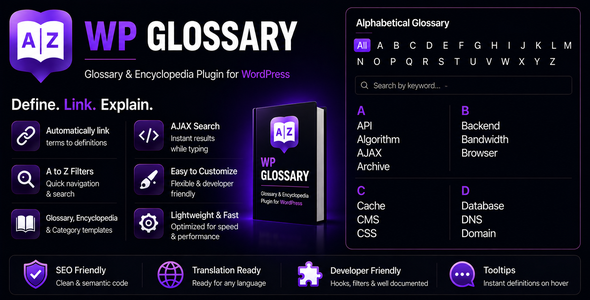
WP Glossary is a WordPress plugin that turns a site into a structured reference library — an encyclopedia, lexicon, knowledge base, wiki or dictionary — by storing each entry as a custom post type and then linking those entries wherever they appear in ordinary content. It suits site owners who need definitions to be both browsable in an A–Z index and discoverable inline, without asking readers to leave the page they are reading. The plugin is sold on CodeCanyon for $39 by the developer wpinstinct.
The commercial case rests on a simple observation: most WordPress sites that publish definitions end up managing them as ordinary posts, which gives no alphabetised index, no automatic cross-linking and no hover previews. WP Glossary WordPress installations instead gain a dedicated term editor, a filterable index that can be dropped onto any page with a shortcode, and a set of controls governing how aggressively terms are linked across the rest of the site.
What the plugin actually does: index, linkify and tooltip modules
The plugin is organised into three working parts, and understanding the split matters more than reading a feature list, because each part can be configured or switched off independently.
The glossary index is the public-facing directory. A shortcode places it on any page or post, and the vendor allows a listing layout of between one and five columns. Visitors filter by letter or by category, and an instant search narrows results as they type — the search position and its label are both configurable. Empty letters and empty categories can be hidden so the filter row does not advertise entries that do not exist, and the label on the “All” button is editable. Individual terms can be excluded from the index entirely, and the archive can be disabled so that the index page and the term slug share a single URL structure.
Linkify is the automation layer. It scans content and converts recognised terms into hyperlinks pointing at their definition pages. The controls here are unusually granular for a plugin at this price: linkify can be toggled globally, restricted to chosen post types, and enabled or disabled per surface — post content, excerpts, category and term descriptions, text widgets and comments. It can be suppressed on the home page, suppressed on a single page or post without affecting the rest of the site, and suppressed for an individual term. Synonyms and tags attached to a term are linked too, each term can be capped at a maximum number of links per page, and that cap can apply either across the whole page or within each section separately. Matching can be made case-sensitive, and specific HTML tags can be excluded from processing.
Tooltips display the definition in a small overlay when a linked term is hovered, so the reader never has to navigate away. The vendor states that the tooltips support keyboard navigation and screen readers, which is the detail that separates a usable implementation from one that quietly excludes assistive technology users.
Around those three modules sit a few decisions that affect how the plugin fits an existing site. Terms can live in the plugin’s own post type or in any post type already registered on the installation, which avoids duplicating content that is already published elsewhere. The term slug — the URL segment that doubles as the SEO keyword — is editable. There is a “Back to Glossary Index Page” link on detail pages with a customisable label, and term links can be set to open in a new tab or to remain highlighted but unclickable. Colours and font sizes are adjustable without writing CSS.
Language handling is broader than the usual translation-ready claim. The alphabet used for the A–Z filter can be replaced with a custom set of letters, which is what makes the plugin viable for Hebrew, Greek or Cyrillic glossaries rather than only Latin-script ones. Every string is translatable, and the vendor lists WPML and Polylang compatibility alongside BuddyPress. Browser support is declared from Internet Explorer 7 upward, and the plugin states compatibility with WordPress 4.9 through 7.0.x and WooCommerce 6.x through 10.x. Source files are included and cover JavaScript, CSS and PHP.
Where a glossary plugin earns its place, and where it does not
The clearest fit is a content site with its own vocabulary. A medical publisher defining clinical terms, a law firm explaining procedure, a SaaS company documenting product terminology, a university department publishing a subject glossary — all of these benefit from the combination of a canonical definition page and automatic inline linking. The linkify module also produces internal links at scale, which is the mechanism the vendor cites for SEO benefit; each highlighted term points back to a dedicated page, and internal linking of that kind is a recognised signal.
Membership and community sites are a second fit. BuddyPress compatibility plus the ability to linkify comment content means a wiki-style glossary can be woven into user-generated discussion rather than sitting apart from it.
Multilingual publishers are a third, and arguably the strongest, because the custom alphabet support is not a common feature. A site running WPML with a Greek or Hebrew glossary faces a filter row that would otherwise break, and this plugin addresses that directly.
It is the wrong choice for a site that wants a full knowledge base with article hierarchies, versioning, feedback voting and search analytics. This is a glossary tool: it manages short definitions and their linking behaviour. Teams that need long-form documentation with nested categories and reader feedback should look at dedicated knowledge base platforms instead. It is also unnecessary for a site with a dozen definitions that rarely change — manual linking in the editor costs less than configuring and maintaining another plugin.
Strengths and limitations
Strengths
- The linkify controls are the standout. Per-post-type, per-section, per-term and per-page exclusions, plus a link cap that can be scoped to the whole page or a single section, cover the edge cases that make automatic linking annoying on real sites.
- Reusing an existing post type means a site already publishing definitions does not have to migrate or duplicate content.
- Custom alphabets make non-Latin glossaries practical rather than a workaround.
- Accessible tooltips with keyboard and screen reader support are a genuine differentiator in a category where hover overlays are often built with no accessibility consideration at all.
- The rating history is strong: 4.98 out of 5 across 160 reviews, with 2,266 sales, which is a meaningful sample rather than a handful of early adopters.
Limitations
- Automatic linkify on a large site with many overlapping terms can produce link-heavy pages. The exclusion and cap settings exist precisely because this happens, and tuning them takes real time.
- Tooltips show a short definition only. The vendor does not state that images, tables or rich layouts are supported inside the tooltip window, so complex entries have to live on the term page.
- Declared browser support reaching back to Internet Explorer 7 suggests a conservative front-end stack. That is not a defect, but it does mean the plugin is unlikely to adopt newer CSS or JavaScript features quickly.
- The vendor’s compatibility list names WordPress versions up to 7.0.x, which is ahead of the current release cycle. Buyers should confirm the plugin behaves correctly on their own version rather than assuming forward compatibility.
- This is a CodeCanyon item, so support runs through the marketplace’s licensing and renewal terms rather than a direct vendor subscription. That model suits some buyers and frustrates others.
How it compares with the wider glossary plugin category
Glossary plugins generally fall into two groups. The first is lightweight tools that add a definition field and a shortcode, leaving linking and presentation largely manual. The second is broader knowledge base systems that bring article hierarchies, search and reader feedback along with the glossary.
WP Glossary sits closer to the first group but pushes well past it on configuration. The differentiators are the granularity of the linkify rules, the option to attach terms to an existing post type, custom filter alphabets, and accessible tooltips. Against the second group it gives up structure: there is no article hierarchy, no feedback mechanism and no documentation workflow. A buyer choosing between the two is really choosing between a focused linking and indexing tool and a publishing platform.
On price, $39 is a one-off CodeCanyon purchase rather than a recurring subscription, which makes the cost comparison straightforward for anyone weighing it against a hosted knowledge base service billed monthly.
Frequently Asked Questions
Does WP Glossary link terms automatically across the whole site?
Yes. The linkify module scans content and converts recognised glossary terms into links pointing at their definition pages. It can be limited to specific post types and specific surfaces such as post content, excerpts, widgets or comments, and it can be disabled on the home page, on individual posts, or for individual terms.
Can WP Glossary use an existing post type instead of its own?
Yes. The plugin ships with a default custom post type for glossary terms, but the vendor allows any post type already registered on the WordPress installation to be used instead. That lets a site keep definitions in a post type it already publishes, avoiding duplicated content or a migration.
Is WP Glossary compatible with WPML and other translation plugins?
WPML and Polylang compatibility are both listed by the vendor, and every string in the plugin is translatable. The A–Z filter alphabet can also be replaced with a custom set of letters, which is what allows glossaries in Hebrew, Greek or Cyrillic script to display a working filter instead of a Latin-only one.
Do the glossary tooltips work with keyboards and screen readers?
The vendor states that tooltips support keyboard navigation and screen reader access, so the definition overlay is not restricted to mouse hover. That matters because tooltip implementations are frequently built as visual-only overlays. Buyers with strict accessibility requirements should still test the specific theme and markup in use.
Verdict
WP Glossary is worth buying for sites that publish definitions as a genuine part of their content strategy — reference publishers, regulated industries, multilingual sites and product documentation teams. The linkify controls, custom alphabets and accessible tooltips are the features that justify the purchase, and a 4.98 rating across 160 reviews from 2,266 buyers is a credible signal that the plugin holds up in production. It is not the right purchase for anyone who needs a full knowledge base with article hierarchies and reader feedback, nor for a small site with a handful of static definitions where manual linking is simpler. Buyers should also verify behaviour on their own WordPress version, since the vendor’s compatibility list runs ahead of the current release cycle.